
Can customers find your front door? A local SEO checklist for Richmond Hill and Markham
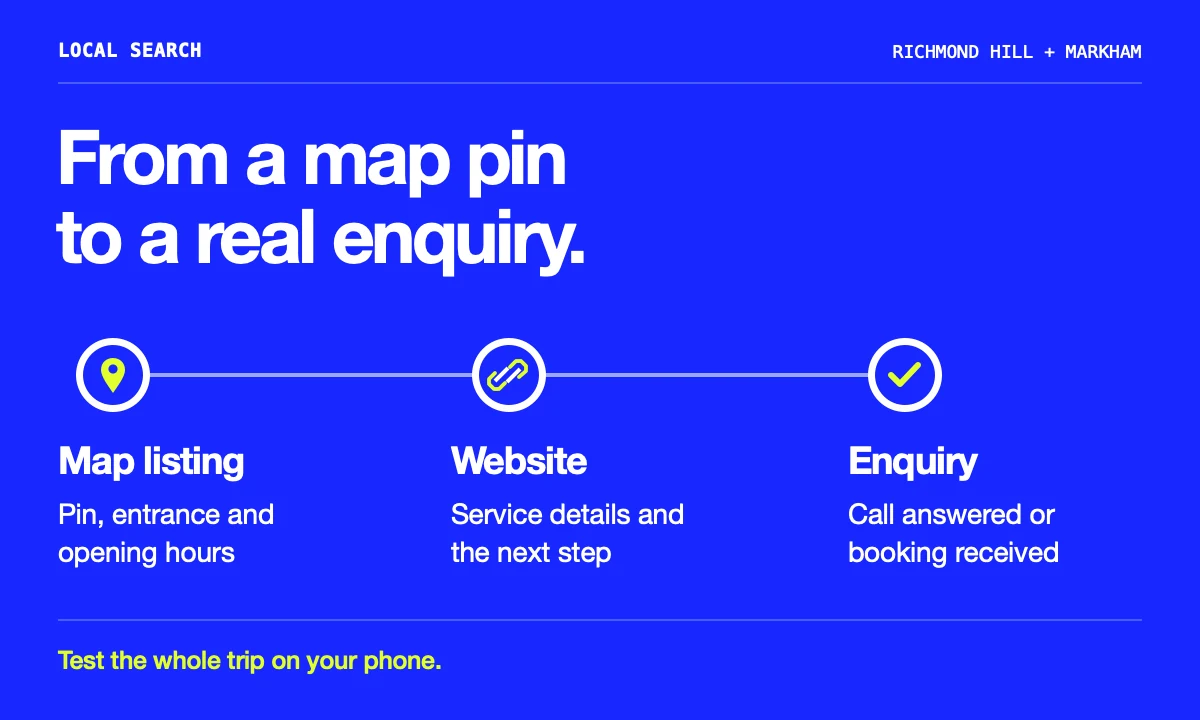
Follow a customer from Google Maps to your front door or booking form. Five checks reveal where a local enquiry can go wrong.
Imagine a customer texting a friend, “Meet me on Main Street in Markham.” Do they mean Main Street Unionville or Main Street Markham? Both are real places to shop. The owner who writes the full street name, photographs the entrance and tests the directions link has saved that customer a second trip.
Start your local SEO check on your phone. Search for your business as a customer would, open its Google Business Profile, then follow the website link. Keep a note of anything you have to guess.
Match the listing to the way you actually work
Use the name on your signage and the most specific primary category that describes the business. Check the public listing as well as your owner dashboard. Someone standing outside should recognize the name and photo they saw on Google.
A Unionville framing shop that serves customers at its premises can show its storefront address. A mobile picture hanger based in Richmond Hill who visits customers and never receives them at home should hide the home address and enter the areas actually served. In that second example, one mobile business working across Richmond Hill and Markham generally needs one profile for its service area.
Walk the last hundred metres
Tap Directions in the listing and on your website. Check where each pin lands. Look from that point towards your door. Is the entrance inside a plaza, around a corner or upstairs? Put that last instruction beside the address, where someone arriving in the rain will see it.
For a shop in downtown Richmond Hill, the Village BIA’s parking map is a starting point. Walk the route yourself before recommending a lot. Check its signage, then describe the entrance your customer should use. In Unionville, write the full street name in the booking confirmation too. A correct map pin on your homepage cannot fix an ambiguous appointment email.
Make the website answer the question that earned the click
Suppose a customer finds a Markham alterations shop while searching for trouser hemming. On the page linked from Google, they should be able to find the service, see whether fittings need an appointment and book or call. An attractive gallery alone leaves the question open.
For a mobile business, try the same exercise with a service-area question. A useful line might read, “We fit curtain tracks in Richmond Hill and Markham. Send your nearest intersection, ceiling height and a photo for an estimate.” That tells a homeowner both whether to enquire and what to send. Adapt the details to the jobs you actually accept.
Give someone else the phone
Ask someone unfamiliar with the business to complete these tasks without coaching. Note the first place they hesitate.
- Find the opening time for the next holiday and check it against the website. Update special hours in the profile if needed.
- Call using the displayed number. Check which phone rings and what the voicemail says outside opening hours.
- Book a fitting or submit a test enquiry with your permission. Look for the confirmation as a customer, then find the same request in the inbox staff actually monitor.
Count the enquiries behind the clicks
In a verified profile’s Performance report, choose the last complete month and record available website clicks, direction requests and call-button taps. Google counts a call tap even if nobody answers. Compare those figures with answered calls, completed forms and bookings in your own records.
Suppose the listing shows 18 call taps and the shop records four booked fittings. You cannot tell from those two numbers how many taps became appointments. For the next month, ask new callers how they found you and record the answer with the booking. If callers repeatedly ask which Main Street you are on, you already know which detail to fix first.
Explore Done48’s GTA website service