
What a new client needs before booking a Toronto salon
Take a first-time colour client from a photo they love to the right appointment, with fewer questions for the front desk.
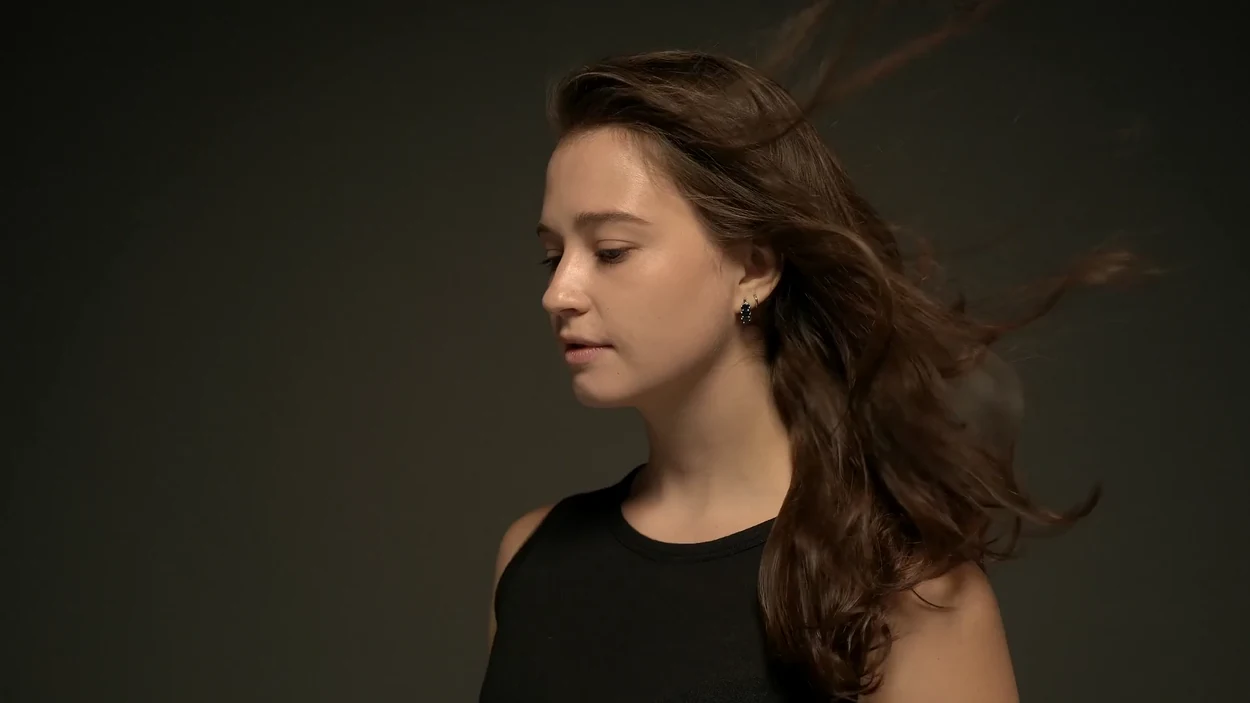
Someone finds a photo of a soft copper balayage your stylist posted. They like the colour. They have shoulder-length hair, old highlights and a free Saturday afternoon. Your booking menu offers “partial,” “full,” “gloss” and “transformation.” Which one should they pick?
That moment is where a Toronto salon website can earn its keep. A returning client might book from the first button. A new client needs a little guidance before handing over a deposit. Here’s how to design for both.
Write the service menu the way your receptionist explains it
Sit with whoever answers the phone. Ask them to explain the difference between your two most commonly confused appointments. Use their answer directly under the service names. Include the starting price or usual range, the time to reserve, what’s included and the reason a quote might change. If a blow-dry costs extra, say so before someone chooses a time.
A fictional menu entry might read, “Face-frame highlights · from $135 · allow 90 minutes. We lighten the pieces around your face and finish with a toner and blow-dry. Looking for brightness through the back as well? Choose partial highlights.” Use your own prices and timing. Carry those same service names into the booking system so the client recognises the next screen.
Put the appointment beside the photograph
Give each featured look a short caption that names the service booked, the starting point and the stylist. Use a client photo with permission. When a change took two visits, include that detail. Someone with previously dyed hair can then compare their starting point with the one in the picture.
Place a link to the matching appointment or consultation next to the caption. If your booking system supports links to individual services, use them. Otherwise tell the visitor exactly which option to select when the calendar opens. For a corrective colour appointment, explain what the consultation covers, how to send reference photos and when the stylist will respond.
Give directions to the chair, right down to the entrance
Toronto neighbourhood names help people get their bearings. A Leslieville studio near Queen Street East and Carlaw Avenue can name that intersection, then show the actual door in a street-level photo. A salon on Danforth Avenue near Broadview can mention Broadview station when it’s a convenient walk to the entrance. Write the route you would give a first-time caller.
Publish the street number, unit, floor and buzzer beside the map link. If there’s a step at the door or a lift around the side, describe what visitors will encounter. Include those details in the booking confirmation too. That’s where a client standing on the sidewalk will look.
Test the booking route as a stranger
Open the site on your phone while signed out of the booking platform. Ask someone who has never visited to choose a first colour appointment. Watch where they hesitate. Then repeat the test from the booking link on your Google Business Profile. Google lets eligible businesses choose a preferred link when several booking links appear.
- Check that the chosen location, service and stylist carry through wherever your provider supports it.
- Read the deposit, cancellation and rescheduling terms before the final confirmation screen.
- If a service is fully booked, show how someone can check another stylist, join a real waitlist or reach reception.
- When reviewing performance, count completed appointments in the booking system separately from taps on the booking button.
See Framar Salon in the Done48 portfolio